
Acer 4-in-1 USB C Hub
4.2Editor score
4K@60Hz dual output
100W power delivery
USB 3.0 data port
This guide compares the top dual HDMI monitor adapters for 2026, evaluating compatibility, resolution support, and performance for Windows and macOS users.
Finding the right dual HDMI monitor adapter can transform your workspace by enabling a multi-screen setup that boosts productivity and streamlines your workflow.
We compared ten leading adapters based on compatibility, resolution support, build quality, and user feedback to help you choose the best option for your needs.
Each pick highlights key features, pros, and cons to guide your decision, but remember that prices and availability can change, so always check current listings before buying.
4.2Editor score
4.5Editor score

4.5Editor score
The following table provides a side-by-side comparison of all ten adapters, highlighting their key specifications, compatibility, and unique features to simplify your selection process.


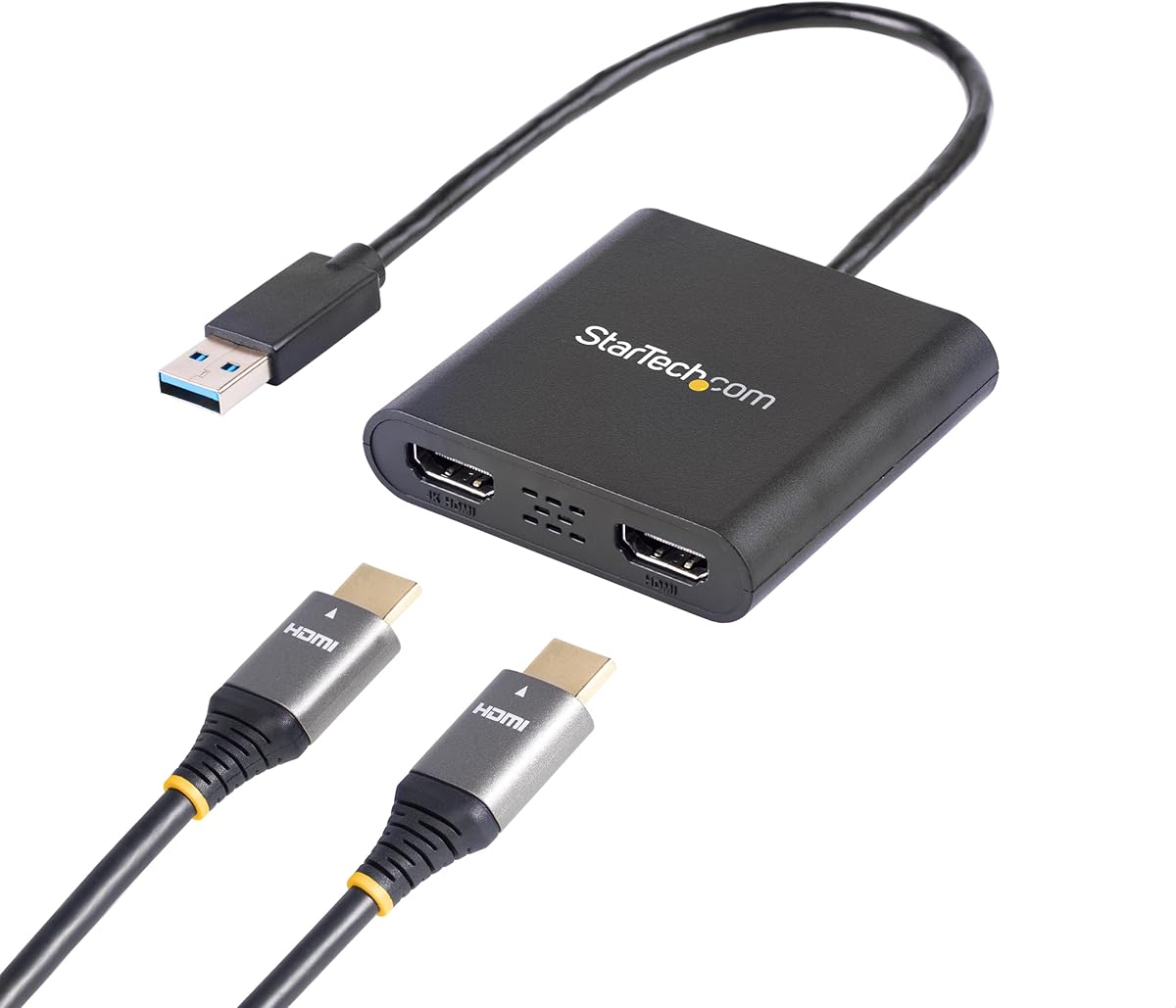
The StarTech USB-A 3.0 to Dual HDMI Adapter is a robust solution for Windows users seeking a reliable dual-monitor setup. With a rating of 4.5 stars, it stands out for its consistent performance and solid build quality.
We may earn a commission when you buy through this link, at no additional cost to you.
This adapter supports 4K at 30Hz on one monitor and 1080p at 60Hz on the other, providing ample resolution for productivity tasks. It includes 2-channel audio over HDMI and is backed by a 3-year warranty with 24/7 technical support.
While it offers great performance, note that it requires administrator rights for driver installation and is not compatible with macOS, ChromeOS, or Linux. This limitation may restrict its appeal for cross-platform users.
Ideal for IT professionals and Windows workstations, this adapter delivers stable multi-monitor support. Its durability and comprehensive warranty make it a top choice for those prioritizing reliability in their office setup.
Designed for IT pros, it offers extended support and durability for demanding environments.
Works with all Windows X86/X64/ARM platforms including Intel, AMD, and Snapdragon X.
We may earn a commission when you buy through this link, at no additional cost to you.
The Acer 4-in-1 USB C Hub offers exceptional value for budget-conscious users needing dual HDMI output. Rated 4.2 stars, it provides crisp 4K@60Hz visuals on both displays while maintaining a sleek, compact form factor.
We may earn a commission when you buy through this link, at no additional cost to you.
This hub supports 100W power delivery to keep your laptop charged and includes a high-speed USB-A port for data transfers up to 5Gbps. It is compatible with Windows and macOS devices that have DP Alt Mode.
However, macOS users are limited to mirroring content across both external monitors rather than extending. Additionally, the included cable is only 20cm long, which may require a longer HDMI cable for your setup.
For students and professionals on a budget, this hub delivers premium features at an accessible price point. Its power delivery and data transfer capabilities make it a versatile addition to any USB-C workstation.
Keep your device charged while using both HDMI ports with 100W PD pass-through.
Dual 4K@60Hz ensures fluid visuals for multitasking and media consumption.
We may earn a commission when you buy through this link, at no additional cost to you.
The Selore&S-Global USB-C to Dual HDMI Adapter is a premium hub designed for high-performance setups. With a 4.5 rating, it supports dual 4K@60Hz displays and integrates PD 100W charging, making it ideal for power users.
We may earn a commission when you buy through this link, at no additional cost to you.
It features a USB-A port for 5Gbps data transfers and is compatible with Thunderbolt 3/4 and full-function USB-C ports. The MST support on Windows allows for extended desktops across both monitors seamlessly.
While macOS users are limited to mirroring, the adapter still provides solid performance for those environments. Note that a 100W power adapter is not included, so you will need to supply your own for full charging capability.
This hub is perfect for professionals who demand high resolution and fast data transfers. Its compact design and robust features make it a reliable choice for modern, high-resolution workflows.
Dual 4K@60Hz support ensures smooth, detailed visuals for creative and office work.
Combines video, data, and charging in a single sleek adapter for all-in-one utility.
We may earn a commission when you buy through this link, at no additional cost to you.
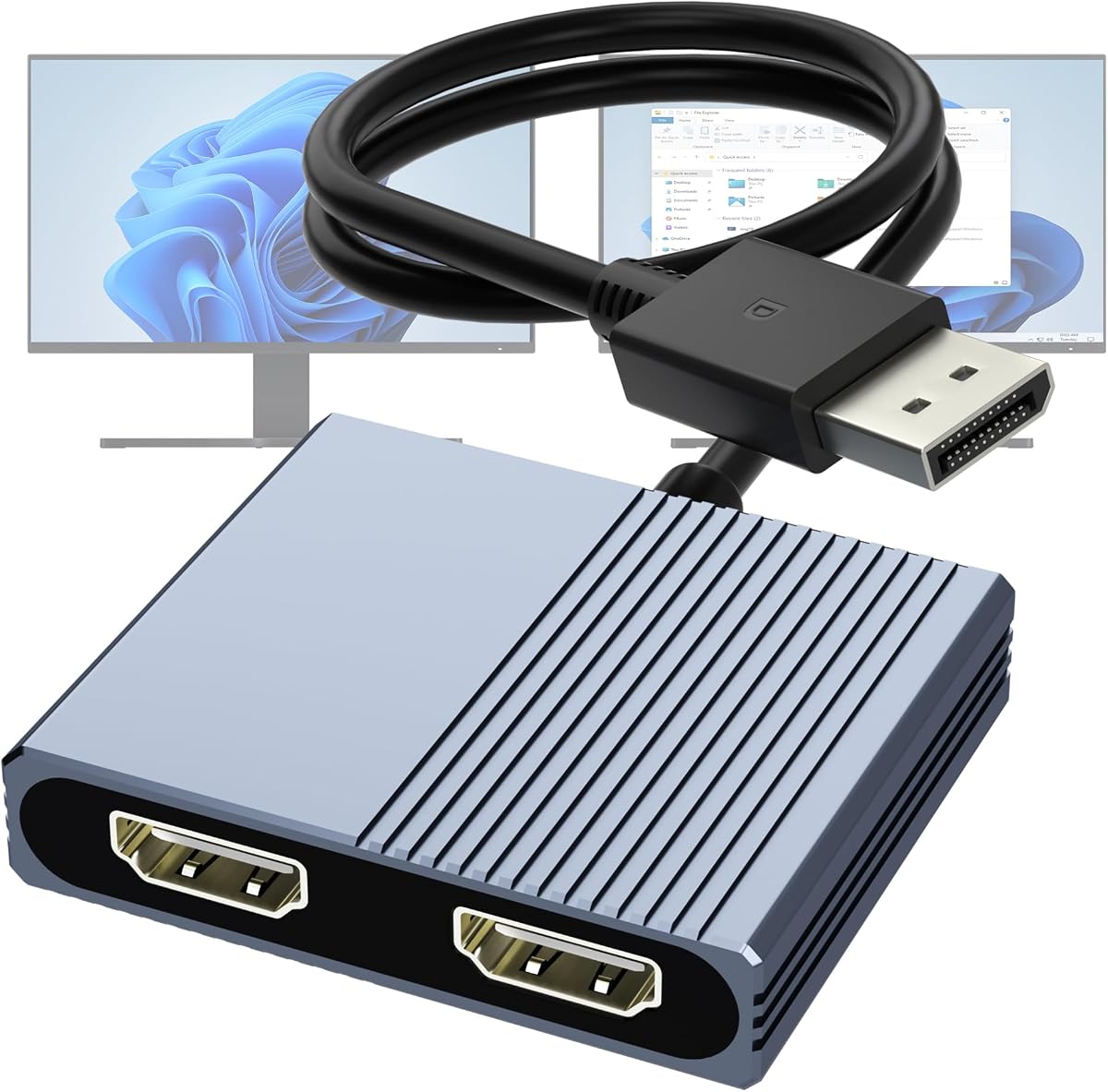
This DisplayPort to Dual HDMI Adapter is tailored for users with dedicated graphics cards and DP 1.4 ports. Rated 4.1 stars, it enables extended displays with dual 4K@60Hz resolution without requiring software drivers.
We may earn a commission when you buy through this link, at no additional cost to you.
It supports both MST and SST modes, allowing flexible screen setups. The non-locking connector protects your graphics card, and multi-layer shielding ensures stable signal transmission even under heavy use.
The adapter needs external power via USB for full functionality, which adds a slight complexity to setup. Also, integrated graphics may not support extended modes, limiting its use on some laptops.
For desktop users or those with discrete GPUs, this adapter provides a direct and efficient path to multi-monitor productivity. Its plug-and-play nature makes it easy to integrate into existing setups.
Designed to work with graphics cards like NVIDIA GeForce RTX or AMD Radeon RX series.
Non-locking connectors and shielding prevent damage and ensure reliable performance.
We may earn a commission when you buy through this link, at no additional cost to you.
The WAVLINK HDMI Splitter Extended Display supports a wide range of operating systems, including Windows, macOS, and Chrome OS. Rated 4.4 stars, it offers flexible connection options via USB-A or USB-C for multi-monitor setups.
We may earn a commission when you buy through this link, at no additional cost to you.
It supports resolutions up to 1080p@60Hz or 1440p@60Hz on one monitor, suitable for productivity apps. The 24-month warranty and lifetime technical support provide peace of mind for long-term use.
Driver installation is required, which may be a hurdle for some users, and it is not recommended for gaming or high-intensity graphic work. Also, HDCP protected content like Netflix is not supported.
For office workers needing reliable multi-monitor support across different OS, this adapter is a solid choice. Its versatility and warranty make it a dependable tool for expanding your workspace.
Works with Windows, macOS, and Chrome OS for diverse work environments.
Can connect to three screens total including the laptop display for extended multitasking.
We may earn a commission when you buy through this link, at no additional cost to you.
The OREI SplitExtend HDMI Splitter is designed to boost productivity with a 3-screen setup, supporting Windows, macOS, and Chrome OS. Rated 4.1 stars, it allows both mirrored and extended viewing modes for flexibility.
We may earn a commission when you buy through this link, at no additional cost to you.
It requires an Intel i5 processor or higher for optimal performance and includes an integrated USB-A to USB-C adapter for versatile connectivity. The Silicon Motion driver must be installed for proper functionality.
While effective for productivity, the need for driver installation and specific CPU requirements may limit some users. It also does not support iOS or Linux, narrowing its compatibility scope slightly.
This adapter is ideal for users seeking an expanded workspace without complex hardware changes. Its support for extended modes makes it useful for multitasking and data analysis scenarios.
Allows true extended mode on Windows for independent screens and increased workspace.
Integrated USB-A/C adapter ensures compatibility with a variety of laptop ports.
We may earn a commission when you buy through this link, at no additional cost to you.
The Selore USB C Docking Station is a comprehensive 8-in-1 hub that supports dual 4K@60Hz displays and offers extensive connectivity options. Rated 4.4 stars, it is ideal for users needing more than just video output.
We may earn a commission when you buy through this link, at no additional cost to you.
It includes two USB 3.0 ports, an SD card reader, and a 100W PD port for charging your laptop. The hub supports MST on Windows for extended desktops, enhancing productivity significantly.
macOS users are limited to mirroring, and the hub requires a Thunderbolt or full-featured USB-C port for video output. A power adapter is not included, which may be a minor inconvenience.
For home or office users wanting a single hub to manage all peripherals, this docking station is a top choice. Its all-in-one design reduces cable clutter and simplifies your daily workflow.
Includes USB-A, SD/microSD, and multiple HDMI ports for all your device needs.
100W PD pass-through ensures your laptop stays powered during extended work sessions.
We may earn a commission when you buy through this link, at no additional cost to you.
This 4K HDMI Splitter is designed for users who need to mirror the same content across two displays without extending. Rated 4.1 stars, it supports up to 4K resolution at 30Hz and includes audio synchronization.
We may earn a commission when you buy through this link, at no additional cost to you.
It is plug-and-play with no driver installation required, making it easy to set up for presentations or dual-screen viewing. The splitter works with TVs, monitors, and projectors from various sources.
Since it only mirrors content, it is not suitable for productivity setups needing different screens. Also, the resolution is capped at 4K 30Hz which may not be ideal for all high-res monitors.
For those needing a simple and affordable way to display the same content on two screens, this splitter is a great option. Its simplicity and audio support make it useful for home entertainment setups.
No drivers needed, just connect the source and two displays for instant mirroring.
Synchronized audio ensures sound matches video across both connected display devices.
We may earn a commission when you buy through this link, at no additional cost to you.
This DisplayPort to Dual HDMI MST Hub allows extended displays with dual 4K@60Hz support for compatible PCs. Rated 4.4 stars, it is ideal for users with dedicated graphics cards like NVIDIA or AMD.
We may earn a commission when you buy through this link, at no additional cost to you.
It features an aluminum alloy housing for durability and heat dissipation, with gold-plated connectors for long-term stability. The hub supports extended mode on Windows and mirror mode on macOS.
Integrated graphics may not support extended displays, so verify your GPU capabilities before purchasing. Also, a DP 1.4 port is required to achieve dual 4K@60Hz, limiting some older systems.
For desktop users wanting to maximize their screen real estate with high resolution, this hub is a reliable choice. Its durable construction and clear extended mode support make it a strong contender.
True extended mode on Windows allows independent content on each monitor.
Aluminum housing and gold-plated connectors ensure longevity and signal stability.
We may earn a commission when you buy through this link, at no additional cost to you.
The UANTIN 6-in-1 USB C Hub is a compact adapter that supports dual 4K@60Hz displays and includes multiple USB ports. Rated 4.3 stars, it is perfect for hybrid workers needing a portable solution.
We may earn a commission when you buy through this link, at no additional cost to you.
It offers 100W power delivery for charging and three USB 2.0 ports for peripherals. The design is driver-free, making it easy to use immediately upon connecting to your laptop.
macOS users are limited to mirroring, and USB 2.0 ports may be slower for large file transfers. The cable is short, so ensure it fits your workspace needs.
Ideal for students and professionals with limited laptop ports, this hub offers a balanced set of features in a portable form. Its plug-and-play design makes it a convenient travel companion.
Slim and lightweight design fits easily into any laptop bag for on-the-go work.
Includes three USB 2.0 ports to connect mice, keyboards, or flash drives easily.
We may earn a commission when you buy through this link, at no additional cost to you.
Selecting the right adapter depends on your device’s ports, operating system, and desired display configuration.
Different adapters support different operating systems. Some are Windows-only, while others support macOS, ChromeOS, or Linux. macOS users should note that many adapters only support mirroring, not extending, on external monitors.
Always check the product details to ensure your OS is supported before purchasing.
Verify your laptop or desktop has the correct port for video output. USB-C adapters need DP Alt Mode, while DisplayPort adapters require a dedicated DP 1.4 source for dual 4K@60Hz.
Integrated graphics may not support extended modes, so dedicated GPUs are often required for full functionality.
Look for adapters that support the resolution and refresh rate you need. Some adapters support dual 4K@60Hz, while others are limited to 4K@30Hz or 1080p. Ensure your monitors and HDMI cables support the desired resolution.
Higher refresh rates provide smoother visuals which is important for media consumption or multitasking.
Adapters with USB-C power delivery (PD) can charge your laptop while in use. A 100W PD rating is ideal for most laptops. Keep in mind that the power adapter is often not included.
PD compatibility ensures your device stays powered during long work sessions.
If you need to connect peripherals like hard drives, check the USB data transfer speeds. USB 3.0 ports support up to 5Gbps, while USB 2.0 ports are slower at 480Mbps.
Choose an adapter with higher-speed USB ports if you move large files frequently.
Some adapters require drivers for functionality, while others are plug-and-play. Driver requirements may need administrator rights and could be a hurdle in restricted environments.
Plug-and-play options save time and reduce setup complexity.
Aluminum housings and gold-plated connectors enhance durability and heat dissipation. Warranties and customer support vary by brand, offering added peace of mind.
Investing in a well-built adapter ensures longer life and stable performance.
Identify your primary use case: productivity, media, or presentation. Some adapters are better for extended modes, while others are optimized for mirroring or audio sync.
Matching the adapter to your workflow prevents limitations after purchase.
Begin by connecting your adapter to your laptop or desktop via the appropriate port, such as USB-C or DisplayPort. Ensure the port supports video output if using USB-C.
Connect both monitors using HDMI cables to the adapter’s HDMI ports. For DP 1.4 or USB-C adapters with power needs, plug the included USB power cable into a port or adapter.
Configure your display settings in the operating system to choose between extended or mirrored modes. For driver-required adapters, download and install the latest drivers before connecting.
Yes, most USB-C adapters require a port with DisplayPort Alternate Mode (DP Alt Mode) or Thunderbolt support to output video. Check your laptop’s specs to confirm it has a video-capable USB-C port.
Many adapters only support mirroring on macOS, meaning both external monitors show the same content. Extended desktops are usually supported on Windows but not on macOS due to system limitations.
This could be due to insufficient source support like lacking DP 1.4, or incompatible HDMI cables. Ensure your graphics card, adapter, and cables all support the desired resolution and refresh rate.
Not all adapters require drivers. Some plug-and-play models work immediately, while others need specific software for extended modes. Always check the product details for driver requirements.
HDMI adapters often connect via USB and rely on drivers, while DisplayPort adapters connect directly to a GPU’s DP port and may support extended modes without extra software. Choose based on your available ports.
Most adapters are designed for productivity and not optimized for gaming. High refresh rates and low latency may not be supported, so dedicated graphics connections are preferred for gaming.
Whether you need budget-friendly options or premium multiport hubs, the adapters reviewed offer versatile solutions for dual monitor setups. Choose based on your system’s compatibility and display goals.
Prioritize features like power delivery, supported resolution, and driver requirements to ensure a smooth experience. Matching these factors to your workflow will maximize your productivity and setup stability.
Keep in mind that pricing and availability may change, so verify current listings before making your purchase to get the best deal for your needs.