
VENTION 6-in-2 USB C Hub
4.3Editor score
140W PD pass-through
Detachable magnetic connector
8K@60Hz video output
This comprehensive guide compares the top 10 docking stations for MacBook Neo users, evaluating connectivity, charging speed, and display support to help you
Finding the right docking station for MacBook Neo can transform your workspace into a powerful productivity hub. With limited ports on modern laptops, a reliable dock expands connectivity for monitors, peripherals, and storage while maintaining sleek aesthetics and fast charging capabilities.
We evaluated ten top-rated docking stations based on port variety, power delivery, display support, and compatibility. Our analysis focuses on real-world performance, build quality, and value to ensure you get a device that meets professional demands without unnecessary bloat or complexity.
Each pick highlights key strengths, ideal use cases, and potential limitations so you can make an informed decision. Prices and availability change frequently, so verify current details before purchasing. This guide covers everything from budget-friendly hubs to premium Thunderbolt solutions for diverse workflows.
4.3Editor score

4.5Editor score
4.1Editor score
This side-by-side comparison highlights key specifications across all ten docking stations to help you quickly identify the best fit for your MacBook Neo workflow, whether you prioritize port count, display resolution, or charging power.





The Anker 8-in-1 Docking Station delivers reliable dual-monitor capability with strong build quality and practical port selection. Rated 4.5 stars by verified users, it balances performance and value for professionals needing extra connectivity without excessive cost or complexity.
We may earn a commission when you buy through this link, at no additional cost to you.
Its dual HDMI ports support 4K@60Hz for a single screen or 4K@30Hz across two displays. The USB-C PD input enables 85W pass-through charging, keeping your MacBook Neo powered while using multiple peripherals like webcams, external drives, and keyboards simultaneously without power drops.
MacBook M1/M2/M3 users are limited to mirrored mode on both external screens due to chip constraints. While this restricts independent workspace expansion, it remains ideal for presentations or monitoring setups where identical content on both screens is acceptable for team collaboration.
Best for creators and office workers who need stable HDMI video output plus Ethernet and card reading. If you use M4 or Intel Macs, leverage full dual-extended desktops. Avoid Linux users since this hub lacks Linux driver support despite broad Windows and ChromeOS compatibility.
Stream content to one 4K monitor at 60Hz for smooth playback, or mirror across two displays at 30Hz for wider workspace visibility during meetings or presentations requiring duplicate screens.
The dedicated PD charging port passes up to 85W to your laptop when using a compatible 100W charger and USB-C to C cable, ensuring stable charging even with all peripherals connected and active.
We may earn a commission when you buy through this link, at no additional cost to you.
iVANKY FusionDock 1 brings high-refresh HDMI capability to users with compatible Macs. Rated 4.3 stars, it supports dual 4K at 120Hz on M4/M5 and Pro/Max chips, while offering generous USB-A ports and stable Gigabit Ethernet for data-heavy and video workflows.
We may earn a commission when you buy through this link, at no additional cost to you.
The included 150W adapter delivers 96W charging to your MacBook, keeping your battery topped up during heavy use. Four USB 3.0 ports enable 5Gbps transfers for external SSDs and accessories, while SD card slots support up to 104Mb/s read rates for photographers.
MacBook Neo M1/M2/M3 users get only a single display output due to hardware limitations in the base chip. You must choose one 4K@120Hz monitor instead of dual screens. Intel MacBook models still support two 4K@60Hz displays for broader compatibility needs.
Ideal for content creators and gamers who want smooth 120Hz visuals on compatible Macs. Verify your model's display support before purchasing. If you need two screens on M1/M2/M3, consider alternative docks or use external GPU enclosures to bypass chip constraints.
M4/M5 and Pro/Max Macs unlock dual 4K@120Hz through HDMI ports for ultra-smooth scrolling and motion, enhancing productivity on timelines and spreadsheets while reducing eye strain during long work sessions.
USB 3.0 ports provide 5Gbps transfer speeds for external drives, while the Ethernet port maintains steady 1000Mb/s connections essential for large file uploads and reliable video conferencing without lag interruptions.
We may earn a commission when you buy through this link, at no additional cost to you.
The Anker Nano Docking Station combines a full 13-in-1 desktop hub with a detachable 6-in-1 portable module. Rated 4.2 stars, it replaces two devices, enabling seamless transitions between home offices and travel setups without carrying multiple adapters or losing port flexibility.
We may earn a commission when you buy through this link, at no additional cost to you.
Connect up to three monitors via HDMI and DisplayPort for expanded workflows. The main dock delivers 100W Power Delivery for charging your laptop while running all connected peripherals, including wired networks, cameras, and high-speed storage without performance bottlenecks or power throttling.
MacOS users can mirror external screens but cannot extend displays independently across three monitors. This limits true multi-window work on external screens, though it suits presenters or traders needing identical views. Windows users enjoy full extended desktop functionality across all connected displays.
Ideal for hybrid workers who need both home desk power and on-the-go simplicity. The detachable design reduces clutter during travel. Consider this if port variety matters more than macOS multi-monitor extension, as Windows and ChromeOS get full display extension features here.
Snap off the 6-in-1 portable hub for quick travel, keeping essential USB-A, USB-C data, and video ports handy. The main station stays at your desk, offering full connectivity without needing two separate docks or extra adapters.
HDMI and DisplayPort outputs enable three connected screens for multitasking. While macOS mirrors, Windows and ChromeOS users gain true workspace expansion, boosting productivity for analysts and creators who need more screen real estate without buying a second laptop.
We may earn a commission when you buy through this link, at no additional cost to you.
Anker 7-in-2 Mac Dock offers maximum simplicity in a pocket-friendly form. Rated 4.5 stars, it adds essential USB-A, HDMI, and card ports without bulk. The slim design avoids obstructing the MagSafe port, preserving wireless charging compatibility while expanding core MacBook Neo connectivity.
We may earn a commission when you buy through this link, at no additional cost to you.
USB-C pass-through delivers 100W charging to power your laptop while using connected devices. HDMI supports 4K@60Hz and the multi-function port enables up to 5K@60Hz video for crisp external display visuals. This meets most everyday productivity needs without requiring complex setup or extra cables.
MacBook M1/M2/M3 models cannot drive dual external displays due to chip limits, so this hub mirrors or shows one external screen. For M4 or Intel Macs, you get independent dual display support. Avoid full docking needs as it lacks Ethernet and extra USB-C data options.
Best for minimalists and students needing basic video plus USB expansion. If you require Ethernet, SD cards plus multiple USB-C data ports, consider larger hubs. Verify your chip compatibility if you need multiple monitors beyond the single-screen limitation on base M1/M2/M3 MacBooks.
The hub layout positions ports to keep the MagSafe charging port accessible, so you can use wireless chargers without rearranging cables or risking blocked connectors on your MacBook Neo's side.
HDMI delivers 4K@60Hz while the USB-C multi-function port supports up to 5K@60Hz, ensuring sharp text and vibrant color for presentations, design review, or streaming without downscaling or flicker issues.
We may earn a commission when you buy through this link, at no additional cost to you.
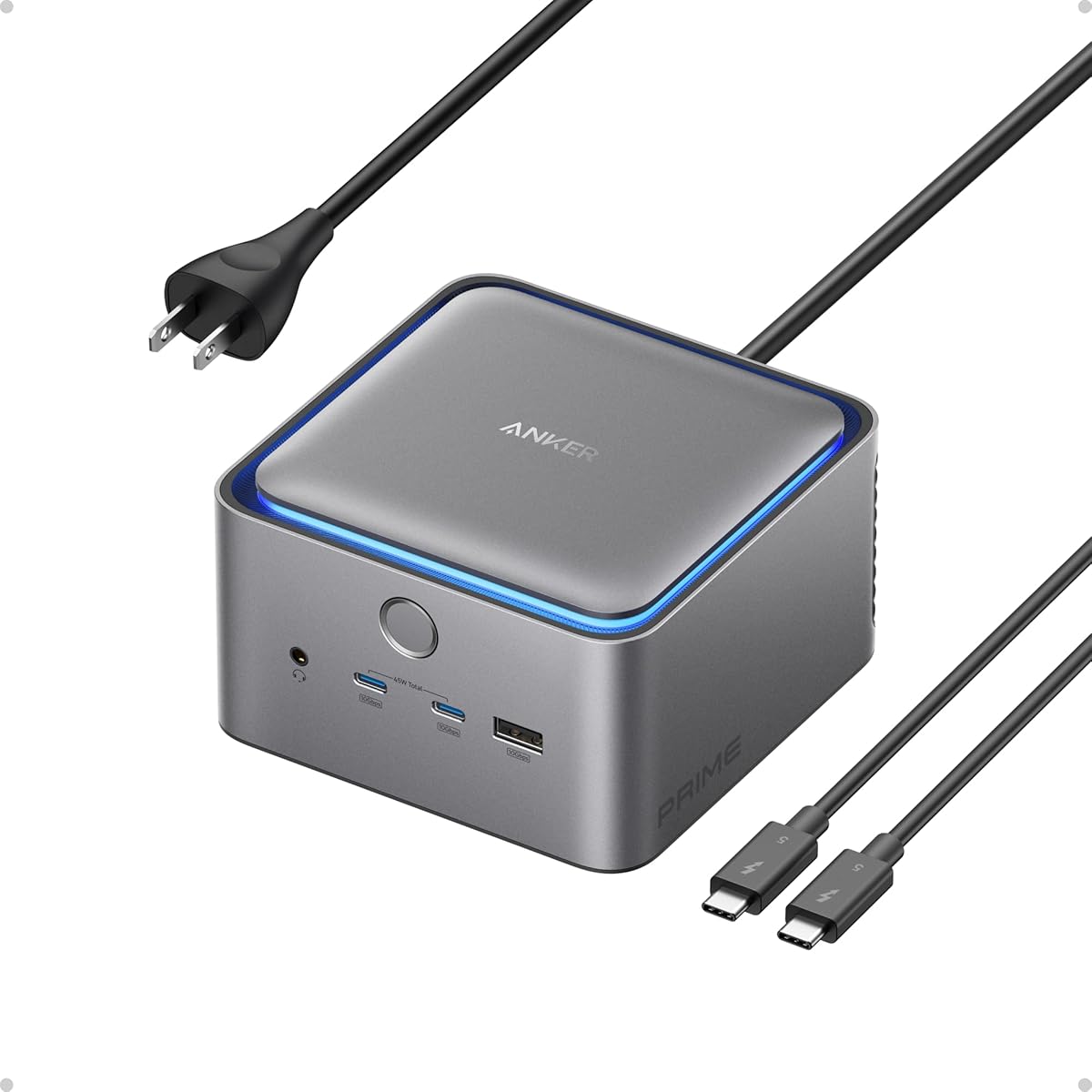
Anker Prime Charging Docking Station delivers extensive connectivity and powerful charging for complex setups. Rated 4.3 stars, its 160W total output can charge your laptop plus up to four peripherals simultaneously through three USB-C ports and one USB-A port, eliminating the need for separate wall chargers.
We may earn a commission when you buy through this link, at no additional cost to you.
Dual HDMI ports support 2K@60Hz with DP 1.4 laptops for smooth video and presentations. The hub offers 11 data ports including USB-C and USB-A for file transfers at up to 10Gbps, ensuring quick syncing of large media files and backups without bandwidth throttling.
macOS users get mirrored display output across both external screens instead of independent extended desktops. Linux support is absent, making this hub unsuitable for Linux MacBook Neo workflows. Ensure your laptop supports DP Alt Mode and Power Delivery for full compatibility and charging stability.
Best for studios or offices charging laptops, phones, and tablets from one dock. Prioritize if multi-device charging outweighs Linux support needs. Windows and ChromeOS users gain the best experience with full display extension and reliable high-speed data transfers across all connected peripherals.
Three USB-C ports enable charging three devices at up to 100W each, plus one USB-A port for additional peripherals. This centralizes power for laptops, phones, and accessories during work, reducing cable clutter and outlet dependency.
Dual HDMI outputs allow 2K@60Hz for crisp visuals, while 10Gbps data ports move large files quickly. This balance supports multimedia editing workflows and backup routines without sacrificing screen quality or transfer speed during intensive tasks.
We may earn a commission when you buy through this link, at no additional cost to you.
VENTION 6-in-2 Hub brings Thunderbolt-class speeds at a budget price. Rated 4.3 stars, it supports up to 80Gbps bandwidth for 8K@60Hz output and 140W pass-through charging. The detachable magnetic connector simplifies daily plug-unplug cycles, reducing wear on your MacBook Neo's ports.
We may earn a commission when you buy through this link, at no additional cost to you.
HDMI delivers smooth 4K@60Hz video for streaming and presentations. USB-A and USB-C data ports support 5Gbps transfers for external drives. The aluminum shell aids heat dissipation during heavy use, maintaining stable performance across data, video, and charging tasks without thermal throttling.
MacBooks with protective bottom cases may block the magnetic connector fit. Using the 7-shaped single plug adapter helps compatibility but affects appearance. Ensure a clear connection for best stability. Avoid cases that cover the connector area if you want a clean and secure setup.
Best for value seekers wanting 8K and high-power charging. Verify case compatibility before buying. Ideal for users needing strong PD pass-through plus HDMI and USB-A ports without paying premium prices. Great for travel and daily office use where quick connect matters most.
The magnetic USB-C hub detaches for easy transport, keeping your main dock compact. Plug and play requires no drivers, making it ideal for switching between home, office, and travel without extra setup steps or cable management.
Single or dual ports support 8K@60Hz and 8K@240Hz refresh rates when connected to Thunderbolt hosts. This delivers ultra-clear visuals for design review or immersive viewing, ideal for creatives needing detailed color and pixel accuracy on external screens.
We may earn a commission when you buy through this link, at no additional cost to you.
Anker Prime TB5 Dock brings next-generation Thunderbolt 5 speeds to professional setups. Rated 4.1 stars, it features two TB5 downstream ports and one TB5 upstream for ultra-fast file transfers. The active cooling system keeps performance stable under full load without throttling or overheating.
We may earn a commission when you buy through this link, at no additional cost to you.
The 140W upstream port delivers PD 3.1 charging for your laptop while running all peripherals. HDMI 2.1 or DisplayPort 2.1 supports 8K@60Hz on a single screen or dual 8K@60Hz on compatible TB5 Windows laptops, offering unmatched clarity for editing and visualization work.
Thunderbolt 5 requires a TB5 host to unlock full bandwidth and video features. Without TB5, performance falls back to TB4 speeds. Ensure your MacBook Neo supports TB5 for best experience. If not, consider TB4 options to avoid paying for unused speed capabilities.
Best for video professionals and data scientists needing fastest possible transfers. Active cooling ensures sustained speeds for large backups or renders. Verify your laptop supports TB5 before purchase. Ideal for power users investing in future-proof connectivity and maximum display resolution options.
Move 150GB files in 25 seconds using TB5 ports, drastically reducing wait times during large media imports or cloud backups. This speed supports intensive workflows without data bottlenecks during collaborative editing or remote work sessions.
An advanced cooling system maintains performance under full load, preventing heat-related throttling. This ensures stable transfer rates and charging even when all ports are active, protecting your devices from overheating during long usage periods.
We may earn a commission when you buy through this link, at no additional cost to you.
TobenONE combines a docking station with a vertical stand to save desk space and improve airflow. Rated 4.5 stars, it supports dual 4K@60Hz HDMI displays for editing and multitasking. The included 100W PD3.0 charger delivers up to 87W to your MacBook, ensuring stable all-day power.
We may earn a commission when you buy through this link, at no additional cost to you.
Ports include HDMI, VGA, USB-C data, USB-A, SD card, Ethernet, and audio jack for full connectivity. The vertical stand lifts your laptop for better screen ergonomics and cooling, reducing clutter while keeping essential ports easily accessible for peripherals and wired network access.
MacBook M1/M2/M3 chips support only single-screen expansion, limiting dual HDMI to mirrored mode. Intel and M4+ models gain true dual displays. Ensure your model supports dual displays before using both HDMI ports. Check chip limitations to avoid unexpected mirroring limitations.
Best for clean desk setups wanting space efficiency. The stand elevates your screen and centralizes ports. Ideal for professionals who value ergonomics and organization. If you need true dual displays, confirm your chip model supports extended desktops across both HDMI outputs.
Elevating your MacBook Neo improves screen ergonomics and airflow, reducing overheating risk. The stand design consolidates cables and creates a tidy workspace, making it ideal for small desks or home offices where visual clutter affects productivity.
Dual 4K@60Hz HDMI supports crisp visuals, while the 100W PD charger ensures stable power. This pairing supports video editing workflows and presentations, delivering reliable performance for long sessions without needing multiple chargers or extension cords.
We may earn a commission when you buy through this link, at no additional cost to you.
TobenONE 18-in-2 Docking Station offers maximum connectivity for heavy workflows. Rated 4.5 stars, it includes dual HDMI, USB-C video, seven USB ports, Ethernet, and SD card slots. The 150W DC adapter delivers 100W to your laptop plus 30W quick charge ports for phones or tablets.
We may earn a commission when you buy through this link, at no additional cost to you.
2.5Gbps Ethernet ensures fast stable internet for large uploads, while SD 4.0 slots support up to 312MB/s transfer speeds for raw photos. This design minimizes cable clutter by centralizing all ports in one hub, enabling seamless multitasking across multiple devices and storage options.
Windows laptops are unsupported, limiting this dock to Apple devices. Mac M1/M2/M3 models can use only one external display due to chip constraints, restricting dual-HDMI to mirrored mode. Verify chip compatibility to avoid surprises if you expect extended dual-screen setups.
Best for Mac-centric offices needing many USB, Ethernet, and card ports. Verify chip display limits before purchase. If you require dual displays on M1/M2/M3, consider alternative setups or external GPUs. Ideal for photographers and remote workers needing full port access without extra adapters.
The 150W DC adapter delivers 100W to your laptop plus two 30W ports for phones. This powers your entire workstation from one wall outlet, reducing outlet usage and ensuring stable charging while using multiple peripherals simultaneously.
2.5G Ethernet and SD 4.0 up to 312MB/s support fast video uploads and photo imports. This reduces sync wait times significantly, making it ideal for photographers and editors working with large raw files needing quick offloading and backup processes.
We may earn a commission when you buy through this link, at no additional cost to you.
Plugable Thunderbolt 4 Dock provides reliable Mac connectivity backed by lifetime support. Rated 4.1 stars, it features 13 ports including dual 4K HDMI and 100W charging. No drivers are needed, ensuring plug-and-play simplicity across Mac and Windows systems with Thunderbolt or USB4 ports.
We may earn a commission when you buy through this link, at no additional cost to you.
Up to two 4K@60Hz displays work across M4/M5 systems and M3 in clamshell mode. Base M1/M2 MacBooks support a single external display due to chip limits, but Intel and M3+ get extended dual screens. This flexibility accommodates diverse Mac models and Windows Thunderbolt setups.
Windows systems with TB4 or USB4 gain full support, making this dock versatile for mixed-device environments. The aluminum chassis ensures heat stability, supporting long work hours without performance loss. Prioritize this if reliable support and cross-platform compatibility are your top needs.
Best for Mac and Windows users needing dependable Thunderbolt docking. Verify chip limits for dual displays on base M1/M2 MacBooks. If you value lifetime support and driverless ease over cost savings, this dock delivers strong reliability and straightforward setup for diverse professional workflows.
North American support team available for setup and troubleshooting, reducing downtime. This service ensures long-term value, especially for enterprise or home office users who want guaranteed assistance for hardware or compatibility issues.
Driverless plug-and-play works seamlessly across macOS and Windows with TB4 or USB4. This simplifies hot-desking or shared setups, allowing quick transitions between laptops without installing drivers or managing complex system configurations.
We may earn a commission when you buy through this link, at no additional cost to you.
Selecting the right dock requires understanding your specific needs for video resolution, power delivery, and port selection to avoid bottlenecks during daily work.
Consider whether you need extended or mirrored displays. MacBooks with M1/M2/M3 base chips typically support only a single external display, while M3+ and Intel Macs handle multiple screens. Verify your model before buying a dual HDMI dock.
Choose HDMI or DisplayPort ports based on your monitor capabilities. For 4K@60Hz or higher refresh rates, ensure the dock supports those bandwidths. This guarantees smooth visuals during video editing or presentations.
Check pass-through charging wattage to match your MacBook's requirements. Most docks offer up to 87W to 100W, which sustains daily use. High-power needs may require a dock with 150W adapters for reliable charging under load.
Prioritize docks with dedicated PD charging ports that avoid sharing bandwidth with data ports. This ensures stable power even with multiple peripherals connected, keeping your battery from draining during heavy workflows.
Match USB-A and USB-C ports to your peripherals. For external drives, 10Gbps or Thunderbolt speeds reduce wait times. Ensure you have enough USB-C and USB-A ports to connect cameras, mice, and SSDs simultaneously.
Include Ethernet and card readers if you work with large files or offline data. SD card transfer speeds vary from 104Mb/s to 312MB/s depending on the dock model. Faster speeds help photographers and editors sync footage quickly.
Many docks work well with macOS, Windows, and ChromeOS, but some exclude Linux due to driver limitations. Verify OS support before buying to avoid connectivity issues. Ensure your chosen dock offers plug-and-play setup.
Note macOS display limitations like mirrored mode on multiple screens. Some docks allow extended desktops only on Windows or ChromeOS. This affects multitasking choices, so confirm your workflow aligns with available display capabilities.
Aluminum housings offer durability and heat dissipation. Look for docks with active cooling systems to prevent overheating during full-load use. Stable thermal performance ensures consistent data speeds and charging without throttling.
Check warranty terms and brand reputation. Most docks include 18 to 24-month warranties and responsive support teams. Reliable customer service reduces downtime if you encounter issues during daily professional use.
Desktop docks offer maximum ports but occupy desk space. Compact hubs fit better on tight desks but provide fewer connections. Detachable modules help travel users carry only needed ports while keeping a full setup at home.
Consider whether your workflow favors mobility or desk permanence. If you move between offices or co-working spaces, a modular design simplifies transitions. For fixed setups, prioritize port count and stability over portability features.
Thunderbolt 4 and 5 offer higher data speeds than standard USB-C. Choose TB4/TB5 for video editing and large file transfers. Standard USB-C hubs offer good value but may limit 4K display bandwidth and data throughput.
Match the upstream cable and host port to the dock's standards. Using lower-speed cables or ports bottlenecks performance. Ensure your MacBook Neo supports Thunderbolt to unlock the full bandwidth potential of premium docks.
Select docks with higher bandwidth headsroom for evolving monitors and storage. 10Gbps data and HDMI 2.1 support future-proof displays for years. This reduces frequent replacements as your equipment upgrades.
Check if firmware updates are available to extend compatibility. Support for upcoming Mac chips or OS versions ensures longevity. Prioritize docks with ongoing software support to maintain seamless performance over time.
Connect the dock to your MacBook Neo using a high-quality USB-C or Thunderbolt cable. Plug the dock into a power outlet if it requires external power, then connect your peripherals in any order. The hub should power on automatically and recognize your MacBook instantly.
Organize cables to avoid tangles and stress on ports. Use short braided cables for a clean desk and secure connectors. Ensure the dock sits on a flat surface away from direct sunlight or heat sources to maintain stable performance and longevity.
Update your MacBook software regularly to ensure compatibility. If you notice flickering displays or slow data transfer, restart the dock by unplugging power for ten seconds. This resets internal chips and restores connection stability without reinstalling drivers.
Most base M1/M2/M3 MacBooks support only a single external display regardless of the dock model. Extended dual displays work on M3 Pro/Max, M4, M5, and Intel Macs. For true dual displays on M1/M2/M3, consider external GPU solutions that bypass chip limitations.
Yes, most docks provide pass-through charging to your laptop while using USB ports. Power Delivery ports allocate up to 100W for your MacBook even when peripherals are active. Check dock specifications to confirm total power output matches your device requirements.
Use the included Thunderbolt or USB-C cable for best performance. Third-party cables should match the dock's supported speeds and power ratings. Low-quality cables may bottleneck data transfers or reduce charging efficiency, so avoid using non-certified accessories.
This limitation comes from macOS and Apple Silicon hardware restrictions. Some docks default to mirroring when multiple displays connect. Check software settings or use DisplayLink software to extend desktops on compatible systems for full multi-monitor support.
Many hubs support Windows 10 and 11 fully with Thunderbolt or USB4 ports. Some docks lack Linux drivers entirely. Ensure your laptop has USB-C DP Alt Mode and Power Delivery for compatibility. Most docks work with ChromeOS and Windows Thunderbolt setups out of the box.
Place the dock on a flat ventilated surface away from enclosed spaces. Avoid stacking items on top of the aluminum housing. Docks with active cooling systems manage heat better under full load, ensuring stable performance during extended use without throttling.
We highlighted top picks like the Anker 8-in-1 for balanced performance, the VENTION 6-in-2 for value, and the Anker TB5 for peak speeds. These cover essential workflows ranging from home office setups to video production needs.
Prioritize display compatibility and charging power over raw port counts to match your daily use. A dock with the right HDMI and PD features will serve you better than one with extra USB ports you rarely use or need.
Prices fluctuate, so check current listings before buying. Verify your MacBook model supports your desired setup to avoid returns. This guide gives you tools to select the perfect dock for your MacBook Neo today and for years to come.