
WAVLINK USB 3.0/USB C to HDMI
4.4Editor score
Supports up to 6 monitors
USB 3.0 GPU certified
Compact and portable design
Discover the top Displaylink Adapter options for Mac and Windows users in October 2026. This guide compares features, compatibility, and performance.
Finding the right Displaylink Adapter can transform your laptop into a full workstation. Whether you need dual monitors for coding or extended screens for design, the right adapter ensures smooth video output and reliable connectivity for your daily tasks.
We evaluated ten top-rated Displaylink Adapters based on compatibility, video quality, and ease of use. Our analysis covers support for macOS, Windows, and ChromeOS, focusing on models that deliver stable 4K output and flexible port options for modern laptops.
Each pick highlights specific strengths like charging power, port variety, or driver support. While we aim to provide accurate details, pricing and availability change frequently. Always check current listings before purchasing to ensure you get the best deal for your setup.
4.4Editor score

4.8Editor score

4.5Editor score
This side-by-side comparison highlights key specifications for all ten selected Displaylink Adapters. Review the video output capabilities, supported operating systems, and additional port features to find the model that best fits your workflow needs.



The ACASIS Dual DP DisplayLink Adapter stands out as a top choice for Mac users seeking dual external displays. It offers a robust solution for bypassing native screen limitations on M-series chips. With strong support for 4K resolution and a high-wattage charging port, it ensures both productivity and power.
We may earn a commission when you buy through this link, at no additional cost to you.
This adapter leverages advanced DisplayLink technology to provide stable dual extended displays. It is particularly effective for professionals who need to multitask across multiple windows without performance drops. The inclusion of USB-A ports allows for connecting essential peripherals like mice and keyboards directly to the hub.
While the adapter is highly capable, users must be prepared to install the DisplayLink driver before use. Additionally, the output is via DisplayPort, meaning HDMI adapters are needed for displays with HDMI inputs. These are minor trade-offs considering the performance and connectivity benefits it provides.
If you own a MacBook Pro or Air with M1 or newer chips and need reliable dual monitor support, this adapter is an excellent choice. It balances performance, power, and portability effectively, making it ideal for home offices and mobile workstations alike.
Break through single screen limits to manage complex workflows efficiently on your Mac device.
Keep your laptop charged while connecting multiple peripherals for a complete workstation setup.
We may earn a commission when you buy through this link, at no additional cost to you.
The ACASIS USB C to Dual HDMI adapter offers a straightforward solution for users needing HDMI connectivity. It delivers dual 4K displays at 60Hz, making it suitable for office tasks and media viewing. The aluminum build ensures durability while maintaining a lightweight profile for travel.
We may earn a commission when you buy through this link, at no additional cost to you.
With a 100W USB-C PD port, this adapter keeps your laptop powered during extended sessions. The three additional USB-A ports provide convenient access for peripherals without cluttering your workspace. This makes it a versatile hub for both Mac and Windows environments.
Users should note that this adapter is not optimized for gaming or HDCP-protected content. It relies on DisplayLink technology, which requires driver installation to function correctly. For productivity and general use, these limitations do not impact the core performance significantly.
Ideal for professionals who need to extend their desktop with standard HDMI monitors, this adapter provides a reliable connection. Its combination of power delivery and video output makes it a strong contender for daily work setups.
Connect directly to standard monitors without needing extra adapters or cables for a cleaner setup.
Maintain battery life and performance while working away from a power source during travel.
We may earn a commission when you buy through this link, at no additional cost to you.
The WAVLINK USB 3.0/USB C to HDMI adapter is an affordable entry point for DisplayLink users. It supports up to six monitors, offering scalability for those needing multiple displays. Despite its budget-friendly nature, it maintains stable performance for everyday computing tasks.
We may earn a commission when you buy through this link, at no additional cost to you.
This adapter includes an external microphone input and headphone output, which is a bonus for users who rely on voice calls or audio monitoring. The compact size makes it easy to carry, fitting well in laptop bags for remote work scenarios.
Resolution capabilities are capped lower than 4K options, which may suit some professional work but not high-fidelity media. It also requires the DisplayLink driver to operate, similar to other models in this category. For basic productivity, these constraints are generally manageable.
Budget-conscious buyers looking for flexibility in monitor setup will find this adapter appealing. It provides a cost-effective way to expand your visual workspace without breaking the bank while maintaining reliable connectivity.
Expand your workspace with multiple screens at a price point that fits tighter budgets easily.
Carry your connectivity needs anywhere with a lightweight device that fits easily in bags.
We may earn a commission when you buy through this link, at no additional cost to you.
Plugable is well-known for reliable connectivity solutions, and this HDMI adapter reflects that reputation. It is designed specifically to bypass Mac display limitations, allowing dual 4K screens on supported models. The brand's lifetime support adds significant value for long-term use.
We may earn a commission when you buy through this link, at no additional cost to you.
On Windows and ChromeOS, the device works as plug-and-play, reducing initial setup time. This makes it attractive for mixed environments where ease of deployment matters. The dual 4K capability ensures sharp visuals for document work and web browsing.
Mac users must install the DisplayLink Manager, which involves extra steps during setup. The price is higher than some budget options, but the brand reliability and support coverage often justify the cost. It is a safe choice for business or personal professional use.
If you prioritize brand reliability and need consistent performance on macOS, this adapter is a strong candidate. It balances feature set with support quality, making it suitable for users who need dependability over low cost.
Overcome native Mac limitations to use two external displays seamlessly with proper support.
Benefit from long-term customer support that ensures issues are resolved quickly when needed.
We may earn a commission when you buy through this link, at no additional cost to you.
This Plugable model combines premium features with flexibility, supporting both USB-C and USB-A connections. It is designed to deliver dual 4K performance using the DL-6950 chipset, ensuring smooth operation for productivity tasks. The included USB-A adapter makes it versatile for older systems.
We may earn a commission when you buy through this link, at no additional cost to you.
The adapter offers consistent performance across Windows and ChromeOS systems, with automatic driver support where applicable. It is built for reliability, catering to business environments where downtime is unacceptable. The lifetime support from Plugable adds confidence to the purchase.
While it is expensive, the build quality and performance justify the price for those needing a robust solution. Mac users should note that it is not recommended for macOS, limiting its audience slightly. However, for Windows users, it is a top-tier option.
Business professionals and IT departments will appreciate the stability and support offered by this adapter. It represents a premium investment in your workflow, ensuring your dual-screen setup runs smoothly over time.
Connect to both new USB-C and older USB-A ports without needing separate adapters.
Count on consistent performance and support that meets the demands of daily professional work.
We may earn a commission when you buy through this link, at no additional cost to you.
The StarTech USB-A DisplayLink adapter serves as a mini docking station with dual DP outputs. It includes a GbE port for wired internet, which is useful for laptops lacking Ethernet. This makes it a practical choice for office environments where stable connections are critical.
We may earn a commission when you buy through this link, at no additional cost to you.
Its compact form factor suits small desks or travel setups. The 1-foot cable provides reach without clutter. However, users may need DP to HDMI adapters if their monitors lack DisplayPort inputs. This adds to the complexity slightly compared to direct HDMI hubs.
TAA compliance makes it suitable for government or enterprise procurement. The reliance on USB-A means it is best for older laptops or devices without USB-C. It offers solid performance for its design constraints and connectivity focus.
For IT departments needing reliable wired connectivity and dual displays for older devices, this adapter is a smart pick. It delivers essential networking and video output in a small package.
Add wired internet support to your laptop with an integrated Gigabit Ethernet connection.
Save desk space with a compact hub that provides essential connections without bulk.
We may earn a commission when you buy through this link, at no additional cost to you.
This ACASIS model is noted for its premium build and high performance. It delivers dual 4K@60Hz video with a focus on stability. The aluminum alloy design ensures heat dissipation, allowing prolonged use without overheating issues.
We may earn a commission when you buy through this link, at no additional cost to you.
The 100W PD port ensures your laptop stays powered during intensive tasks. Combined with USB-A ports, it acts as a comprehensive hub for work setups. Mac users will appreciate the compatibility with M1-M5 chips for expanded workspaces.
The necessity for DisplayPort cables or adapters for HDMI displays is a consideration. Driver installation is mandatory, which is standard for this technology. For users valuing build quality and performance, these are acceptable trade-offs.
If you seek a high-quality adapter for professional Mac work, this is a top choice. Its combination of power, build, and performance offers a premium experience for daily use.
Enjoy a durable aluminum design that protects your device and dissipates heat effectively.
Keep your laptop charged with high-wattage power delivery while driving external monitors.
We may earn a commission when you buy through this link, at no additional cost to you.
The WAVLINK USB 3.0 & USB C adapter stands out for its security features with DL-Chip encryption. It is ideal for corporate environments where data protection is paramount. With dual 4K@60Hz output, it handles modern productivity needs effectively.
We may earn a commission when you buy through this link, at no additional cost to you.
Compatibility spans Windows, macOS, and ChromeOS, making it flexible across organizations. The technical support structure ensures users can get help if issues arise. This makes it a safe bet for business users who value support.
Drivers must be installed manually, and Linux is not supported. These limitations affect some niche users but do not hinder general enterprise use. The encryption feature provides added peace of mind for sensitive work.
Business professionals handling sensitive data will find this adapter reassuring. It balances security with performance, ensuring reliable dual-screen setups for critical tasks.
Protect sensitive information with encrypted chip technology for secure corporate operations.
Support multiple operating systems to fit diverse team needs and device standards.
We may earn a commission when you buy through this link, at no additional cost to you.
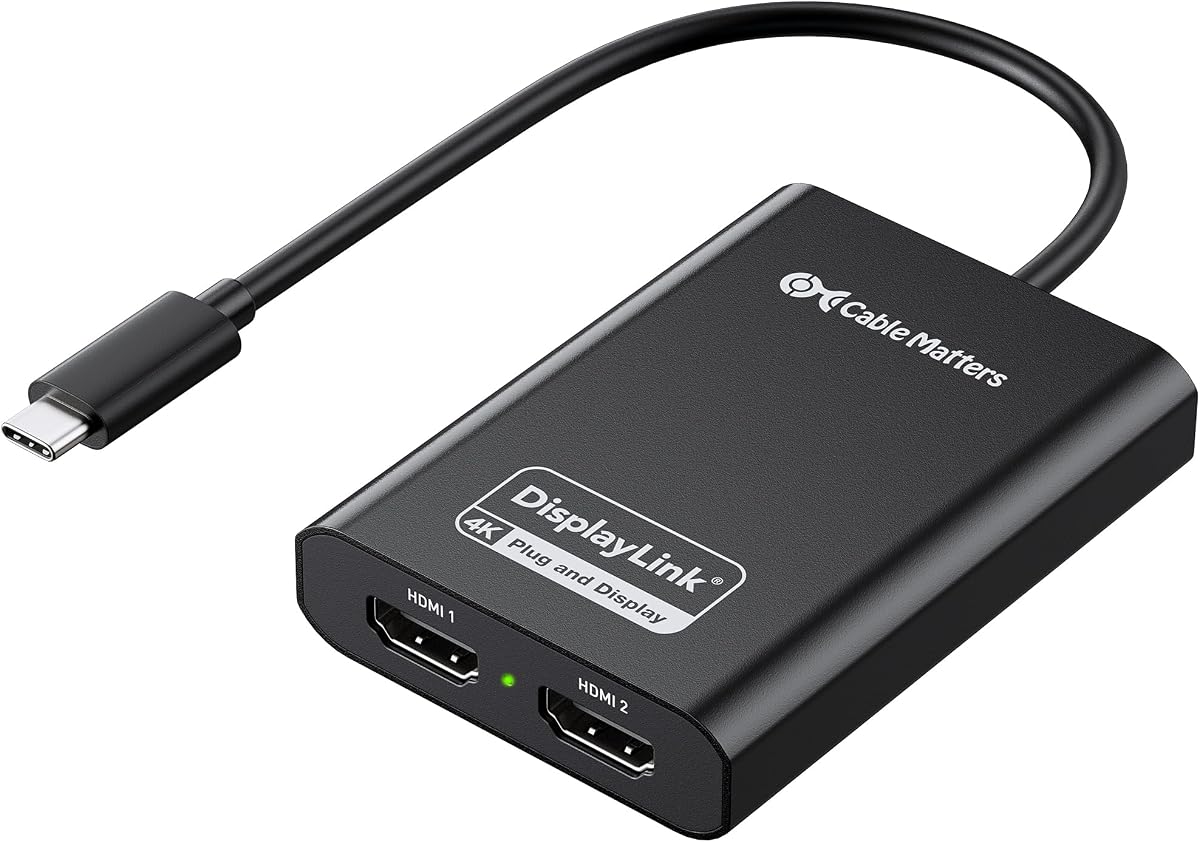
Cable Matters is recognized for its DisplayLink certification, ensuring compatibility and performance. This adapter supports dual 4K@60Hz outputs, making it suitable for high-definition work. The aluminum housing provides durability and helps manage heat during operation.
We may earn a commission when you buy through this link, at no additional cost to you.
It is a good option for users needing reliable expansion of their desktop workspace. The certification ensures the device works as expected with supported systems. Users should note that HDMI cables are not included in the package.
Driver installation is required, which is standard. The build quality is solid, though it may feel warm during use. For general productivity, these are minor considerations compared to the reliable performance it offers.
Those seeking a certified solution for their dual-monitor setup will appreciate this adapter. It delivers consistent results with a durable design that stands up to daily use.
Rely on DisplayLink certification to ensure your adapter meets strict quality and compatibility standards.
Use a sturdy aluminum design that resists wear and keeps your connection stable over time.
We may earn a commission when you buy through this link, at no additional cost to you.
The Sonnet DisplayLink adapter is designed for performance, supporting high refresh rates like 144Hz. This is a notable feature for users who want smooth visuals beyond standard 60Hz. It connects via Thunderbolt or USB, offering flexibility.
We may earn a commission when you buy through this link, at no additional cost to you.
It works well with M1 and M2 Macs, extending their capabilities effectively. Audio support allows sound to pass through the adapter, which can simplify connections. The included USB-A to USB-C adapter adds convenience for different ports.
While it supports Windows, it is tailored for Mac workflows. The driver requirement is consistent with the category. For those prioritizing display fluidity and audio integration, it stands out among competitors.
Users needing higher refresh rates on their external monitors will find this adapter useful. It offers a premium experience for video and general display use on supported systems.
Experience smoother motion and better visuals with support for higher refresh rates.
Stream audio through your display without needing separate cables for sound.
We may earn a commission when you buy through this link, at no additional cost to you.
Selecting the right Displaylink Adapter involves considering compatibility, performance, and port requirements. This guide outlines key factors to help you make an informed decision for your specific setup.
Check if the adapter supports your OS, such as Windows, macOS, or ChromeOS. Some adapters have limitations, especially on Mac, where drivers are mandatory. Ensure the product description confirms compatibility with your specific OS version to avoid setup issues.
Confirm your operating system is listed as supported before purchase.
Look for adapters that support dual 4K at 60Hz for sharp and smooth visuals. Lower refresh rates like 30Hz can cause flicker or lag during multitasking. Ensure the adapter meets your resolution and refresh rate needs for professional work.
Prioritize 4K 60Hz performance for the best visual experience.
Identify the ports you need on your laptop, such as USB-C or USB-A. Additional USB-A ports can be useful for peripherals like keyboards and mice. Consider if you need HDMI or DisplayPort outputs based on your monitor's connections.
Choose an adapter with the right mix of video and data ports.
If you need to charge your laptop while using external displays, look for Power Delivery (PD) ports. A 100W PD port ensures your device stays powered during long work sessions. This reduces cable clutter and maintains performance without battery drain.
Select models with PD support if you need to charge your laptop simultaneously.
Most DisplayLink adapters require installing a driver to function properly. This is standard but can add a setup step. Some models offer plug-and-play on specific OS like ChromeOS or Windows. Always check the manual for driver instructions.
Be prepared to install drivers unless the product states plug-and-play.
Materials like aluminum improve heat dissipation and durability. A longer warranty period, such as lifetime or two years, provides protection against defects. Reliable brands often include better support, which is valuable for professional environments.
Opt for durable materials and strong warranty terms.
DisplayLink adapters generally do not support HDCP-protected content like Netflix. This means they are better for productivity than entertainment. Check the product details to confirm streaming capabilities if you need media playback on external screens.
Avoid these adapters for streaming copyrighted video content.
Prices vary based on features and build quality. Budget models offer basic functionality, while premium ones provide higher performance and support. Balance cost with your specific needs to find the best value for your workflow.
Match the price to the features you need for your workspace.
To use your Displaylink Adapter, connect it to your laptop's USB port and attach your monitors. Ensure you have the DisplayLink driver installed from the official website for your operating system. This step is crucial for the adapter to recognize the connected displays.
For optimal performance, plug the adapter directly into your laptop rather than using a hub. This ensures stable bandwidth for video transmission. If you experience lag or flicker, check your USB connection or restart the driver.
To care for your adapter, avoid exposing it to excessive heat or moisture. Keep it clean and store it in a safe place when not in use. Regularly update the driver to maintain compatibility with system updates.
A Displaylink Adapter is a device that allows you to connect multiple external monitors to your computer. It uses DisplayLink technology to process video signals over USB, enabling extended displays without taxing your GPU.
Yes, many adapters work with Mac, but they require installing a DisplayLink driver. Some models are optimized for M-series chips, allowing dual external screens on devices that natively support only one.
No, Displaylink Adapters typically do not support HDCP-protected content. Streaming services like Netflix or Hulu may not play on connected displays due to these restrictions.
It uses CPU resources to process video, which can cause minor slowdowns on older systems. For modern laptops, the impact is usually negligible during standard productivity tasks.
Depending on the model, you can connect up to two monitors with a dual output adapter. Some universal adapters support more, but this requires multiple adapters and driver setup.
Yes, most Displaylink Adapters require a driver to function. ChromeOS and some Windows setups may auto-install it, but manual setup is often needed.
No, they are not designed for gaming due to latency and HDCP limitations. For gaming, use a standard GPU output or a Thunderbolt dock instead.
We have reviewed ten top Displaylink Adapters to help you expand your workspace effectively. Our picks cover a range of needs, from budget-friendly options to premium models with advanced features.
When choosing, prioritize compatibility with your OS and the video quality you need. Ensure the adapter has the ports and power delivery options that fit your daily workflow to maximize efficiency.
Prices and availability may change, so check current listings for the best deals. With the right adapter, you can create a productive dual-screen setup for any environment.