
Philips 241V8LB
4.6Editor score
Affordable FHD Display
VA Panel Contrast
Wide Viewing Angles
Finding the right external display for your MacBook Pro can significantly enhance your workflow and visual experience. Whether you are a creative professional needing precise color accuracy or a casual user wanting a sharper screen for productivity, the market offers many options tailored to Apple users. We have evaluated key features like resolution, refresh rate, and USB-C connectivity to help you make an informed decision.
Our selection process involved analyzing technical specifications, user feedback, and compatibility reports with macOS systems. We prioritized monitors that support high-resolution outputs and offer reliable power delivery through a single cable connection. This ensures your MacBook stays charged while you work. We also considered build quality, ergonomic adjustments, and additional features like built-in speakers and KVM switches.
Each pick in this list showcases specific strengths that cater to different user needs and budgets. From budget-friendly FHD options to premium Thunderbolt hubs, there is a monitor here for everyone. Please note that prices and availability can change frequently on online marketplaces. We recommend checking the current listings before making your final purchase to ensure you get the best deal available today.
4.6Editor score
5.0Editor score

4.3Editor score
As an Amazon Associate we earn from qualifying purchases.
This side-by-side comparison highlights the key specifications of all ten selected monitors. It helps you quickly identify differences in resolution, connectivity options, and specialized features designed for Mac users.



The Dell 27 Monitor S2725QC stands out as a top contender for MacBook Pro users seeking a balance between performance and value. With a 4K UHD resolution and a smooth 120Hz refresh rate, it delivers sharp visuals and fluid motion that enhance both work and entertainment. Its IPS panel ensures wide viewing angles and consistent colors, making it a reliable choice for daily tasks.
We may earn a commission when you buy through this link, at no additional cost to you.
This monitor features ComfortView Plus technology which reduces harmful blue light emissions significantly without sacrificing color accuracy. This is particularly beneficial for long working hours. The single USB-C cable connection supports up to 65W power delivery, allowing you to keep your MacBook charged while connecting video and data through one port. This simplifies your desk setup greatly.
While the stand is sturdy it does not offer pivot functionality which might be a limitation for some users who need portrait mode. However the included audio system is surprisingly detailed with greater output power than previous generations. The HDR readiness adds depth to supported content enhancing the visual experience for media consumption and creative work.
If you need a versatile 4K display that integrates well with macOS and offers high refresh rates for smooth scrolling this Dell model is highly recommended. It serves well as a primary external screen for productivity or secondary display for media. We believe it offers excellent value given its feature set and build quality.
The ComfortView Plus feature ensures eye strain is minimized during extended use sessions without compromising on the vibrant color performance.
Connecting via a single USB-C cable reduces cable clutter while providing both high-resolution video and necessary power to your laptop.
We may earn a commission when you buy through this link, at no additional cost to you.
The BenQ MA270UP is explicitly designed for MacBook Pro and Air users offering a seamless experience that rivals Apple's own displays. It features BenQ exclusive color tuning that calibrates the screen to match MacBook color profiles accurately. This ensures that what you see on your external monitor is true to life and consistent with your laptop screen.
We may earn a commission when you buy through this link, at no additional cost to you.
One of its standout features is the dual USB-C port configuration which allows you to connect your MacBook and charge it with 90W power delivery simultaneously. You can also use the second port to charge accessories like an iPad or iPhone. Additionally brightness and volume controls can be adjusted directly from your MacBook keyboard integrating hardware buttons into macOS software.
The monitor supports a wide P3 color gamut which is essential for creative professionals working with photos or video. The stand allows for height and tilt adjustments ensuring ergonomic comfort during long work sessions. While it lacks a KVM switch for controlling multiple computers the dedicated Mac features make it a compelling choice for single machine setups.
For users who prioritize color accuracy and seamless software hardware integration this monitor is a top tier choice. It bridges the gap between professional grade color performance and user friendly features designed specifically for the Apple ecosystem. If you want a display that feels like it was made for your MacBook this is the one to consider.
Volume and brightness adjustments work directly from your keyboard keys making it feel like an extension of the laptop itself.
The P3 color space coverage ensures vibrant and accurate colors essential for design and media tasks on macOS.
We may earn a commission when you buy through this link, at no additional cost to you.
The Philips 241V8LB offers an accessible entry point for MacBook users needing a secondary screen without breaking the bank. Despite its budget friendly price it delivers a crisp Full HD resolution and a 100Hz refresh rate that provides smoother visuals compared to standard 60Hz panels. The VA panel ensures brighter whites and deeper blacks for better contrast in most environments.
We may earn a commission when you buy through this link, at no additional cost to you.
This monitor features a virtually bezel free design on three sides which makes it ideal for multi-monitor setups if you decide to expand later. It includes Flicker Free technology to reduce eye strain during extended viewing sessions. The wide viewing angles mean colors remain consistent even if you view the screen from the side.
While it does not support USB-C power delivery and will require a separate charger for your MacBook it excels in delivering clean visuals for text and general productivity. The EasyRead mode provides a paper like experience which is helpful when working with lengthy documents. It is a solid choice for students or home office users prioritizing value.
If you need a reliable and affordable external display for basic tasks this Philips monitor is an excellent pick. It balances performance and price effectively making it suitable for those who do not need advanced color calibration or high-end connectivity features. We recommend it for secondary screen use where cost is a primary factor.
You get essential features like flicker free and high refresh rate at a price point that is hard to beat.
The minimal bezels allow for seamless tiling with other monitors if you wish to create a larger workspace.
We may earn a commission when you buy through this link, at no additional cost to you.
The LG 27UP850K-W brings VESA DisplayHDR 400 certification to the table offering improved brightness and contrast for HDR content. It reproduces vibrant colors with up to 95% DCI-P3 color gamut expression which is great for creative work and media consumption. The monitor also includes a Switch app that allows easy multitasking by splitting the screen into multiple sections.
We may earn a commission when you buy through this link, at no additional cost to you.
Connectivity is robust with a USB Type-C port supporting up to 90W power delivery and data transfer. This ensures your MacBook stays powered while connected. The built-in speakers feature Waves MaxxAudio for decent sound quality though they may not replace external audio for critical listening. The ergonomic stand allows for height tilt and pivot adjustments.
For users who watch a lot of movies or work with HDR files this monitor provides a significant visual upgrade over standard displays. The included webOS platform lets you stream content directly without needing a computer connection. However the stand adjustments are somewhat limited compared to premium models offering full range motion.
If you want a versatile 4K monitor with HDR capabilities and strong connectivity options this LG model is a strong contender. It fits well into a Mac workflow thanks to the USB-C charging and wide color gamut. We suggest it for users who value visual depth and connectivity features.
DisplayHDR 400 support enhances dynamic range making bright and dark areas more distinct in compatible content.
The webOS built in platform allows you to watch Netflix or YouTube directly on the monitor without a PC.
We may earn a commission when you buy through this link, at no additional cost to you.
The Dell S2425HSM is designed for speed with a 144Hz refresh rate and 1ms Moving Picture Response Time. This makes it ideal for gaming or any task where fast moving visuals need to be smooth and clear. The FHD resolution ensures crisp text and images for productivity while the AMD FreeSync technology reduces screen tearing.
We may earn a commission when you buy through this link, at no additional cost to you.
Its ergonomic stand offers height tilt pivot and swivel adjustments ensuring you can find the perfect viewing angle for your setup. The TÜV certified display reduces harmful blue light emissions to protect your eyes during long sessions. It includes dual 3W speakers that provide a wider range of frequencies than typical monitor audio.
While it lacks USB-C power delivery it connects easily via HDMI. The Ash White finish gives it a stylish look that matches modern desks. For users who prioritize motion smoothness and eye comfort this monitor delivers excellent performance at a reasonable price point. It is a great choice if you are not tied to 4K resolution.
If you need a responsive display that handles fast motion well this Dell model is a fantastic option. It balances gaming features with ergonomic benefits making it suitable for varied use cases. We recommend it for users who want a high refresh rate screen without spending a premium.
The 144Hz refresh rate ensures fluid visuals that are perfect for gaming or dynamic workflow navigation.
Certified blue light reduction helps maintain visual comfort during extended use periods without impacting color.
We may earn a commission when you buy through this link, at no additional cost to you.
The LG 27US500-W provides an accessible 4K UHD display option for those seeking higher resolution without high cost. It features an IPS panel with a 1000:1 contrast ratio ensuring vivid colors and deep blacks. The borderless design contributes to a modern look that fits well in clean home office setups.
We may earn a commission when you buy through this link, at no additional cost to you.
This monitor supports HDR10 content allowing you to enjoy enhanced dynamic range in supported media. It includes Reader Mode and Flicker Safe technology to reduce eye strain during reading or coding sessions. The Onscreen Control software helps customize your workspace by splitting the display or adjusting options with few mouse clicks.
Connectivity relies on HDMI and DisplayPort as it does not include USB-C power delivery. This means you will need to charge your MacBook separately while using it. However the slim stand and white finish add aesthetic value. It is a straightforward choice for users who want 4K clarity primarily.
If your main goal is to have a large 4K screen for static work this LG model delivers excellent value. It lacks some advanced connectivity features but performs well on visual quality. We suggest it for secondary displays where USB-C charging is not a strict requirement.
The 4K resolution provides sharp details for text and images enhancing overall productivity and reading experience.
The borderless design reduces visual distractions and makes the screen appear larger and more immersive.
We may earn a commission when you buy through this link, at no additional cost to you.
The BenQ PD2706QN is a Mac-Ready monitor designed specifically for designers who need accurate colors. It comes factory calibrated with 95% P3 and 100% sRGB coverage ensuring consistent output out of the box. The ICCsync feature automatically matches color profiles between your Mac and the monitor when switching modes.
We may earn a commission when you buy through this link, at no additional cost to you.
Connectivity includes a 90W USB-C port that handles video data and charging through a single cable. The monitor also supports daisy chaining allowing you to connect multiple displays easily. The Anti-Glare Nano Matte panel diffuses ambient light to preserve contrast and reduce glare during design sessions.
Ergonomically it offers height tilt swivel and pivot adjustments for ideal positioning. The 100Hz refresh rate provides smooth motion for UI testing. While the matte finish reduces glare it may look textured up close which some users might not prefer. However color professionals prioritize the accuracy over gloss.
If you are a graphic designer or need precise color reproduction this BenQ monitor is highly recommended. Its factory calibration and Mac specific features make it a reliable tool for creative work. We recommend it for users who demand color consistency across their workflow.
Factory calibration ensures that the colors you see are true to industry standards without manual tuning.
The MST support allows you to connect multiple BenQ displays in a series reducing cable clutter on your desk.
We may earn a commission when you buy through this link, at no additional cost to you.
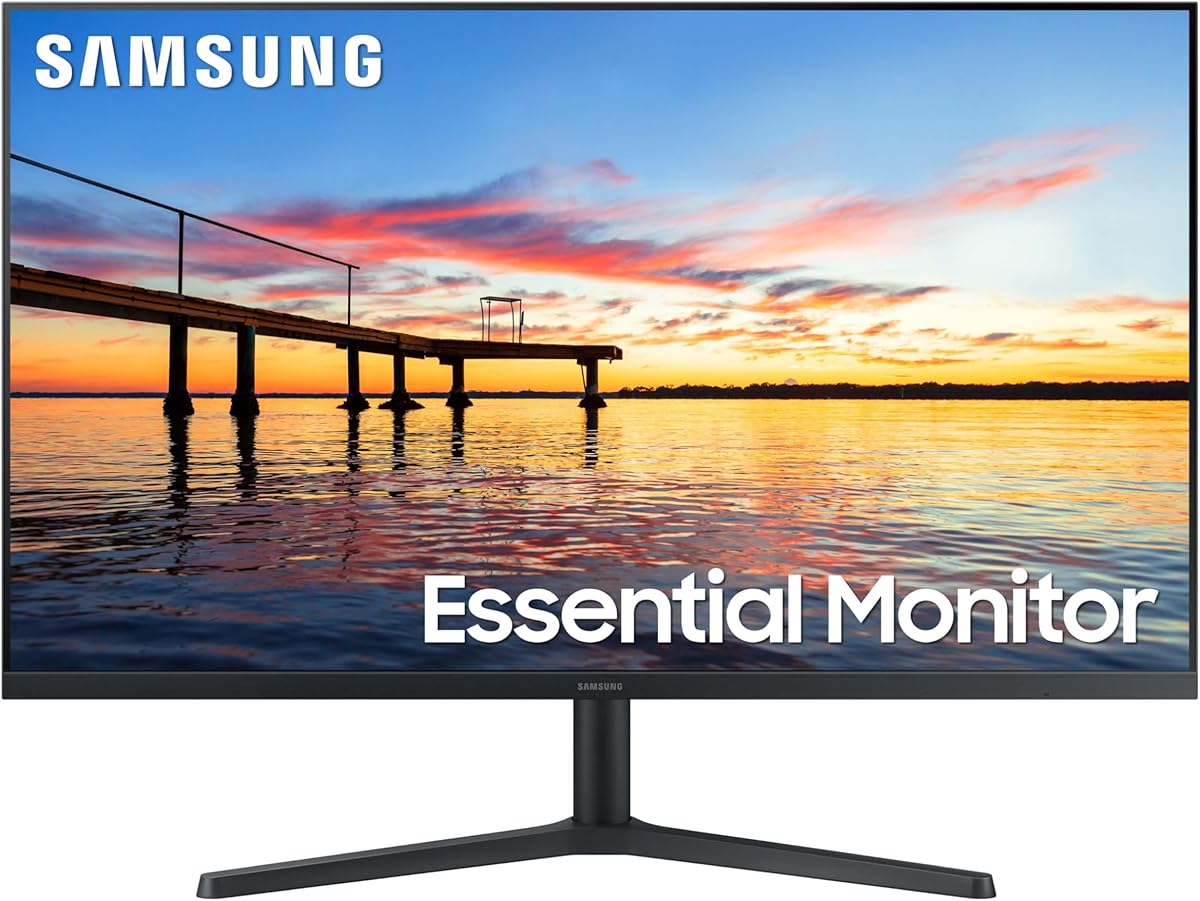
The Samsung 32 Flat monitor offers a large workspace with a 32-inch display that is great for multitasking. The three-sided borderless design gives a clean look and helps when setting up multiple monitors. It features AMD FreeSync to keep refresh rates in sync reducing image tearing during games or video playback.
We may earn a commission when you buy through this link, at no additional cost to you.
Eye care features like Flicker Free and Eye Saver Mode help minimize strain during long work hours. Game Mode adjusts settings to enhance visibility and reaction times for entertainment. While it runs at 75Hz which is smooth for most tasks it is not a high refresh rate gaming panel.
Connectivity requires standard HDMI or DisplayPort as there is no USB-C power delivery. This means you will need a separate charger for your MacBook. However the sheer size of the screen allows for comfortable reading and document viewing. It is a good fit for budget conscious users wanting screen real estate.
If you need a large monitor for reading or coding this Samsung model offers good value. It provides ample space for multiple windows and a modern look. We suggest it for users who prioritize screen size over advanced connectivity.
The 32-inch display provides generous space for managing multiple windows and applications simultaneously.
Flicker Free technology and Eye Saver Mode work together to reduce fatigue during long viewing sessions.
We may earn a commission when you buy through this link, at no additional cost to you.
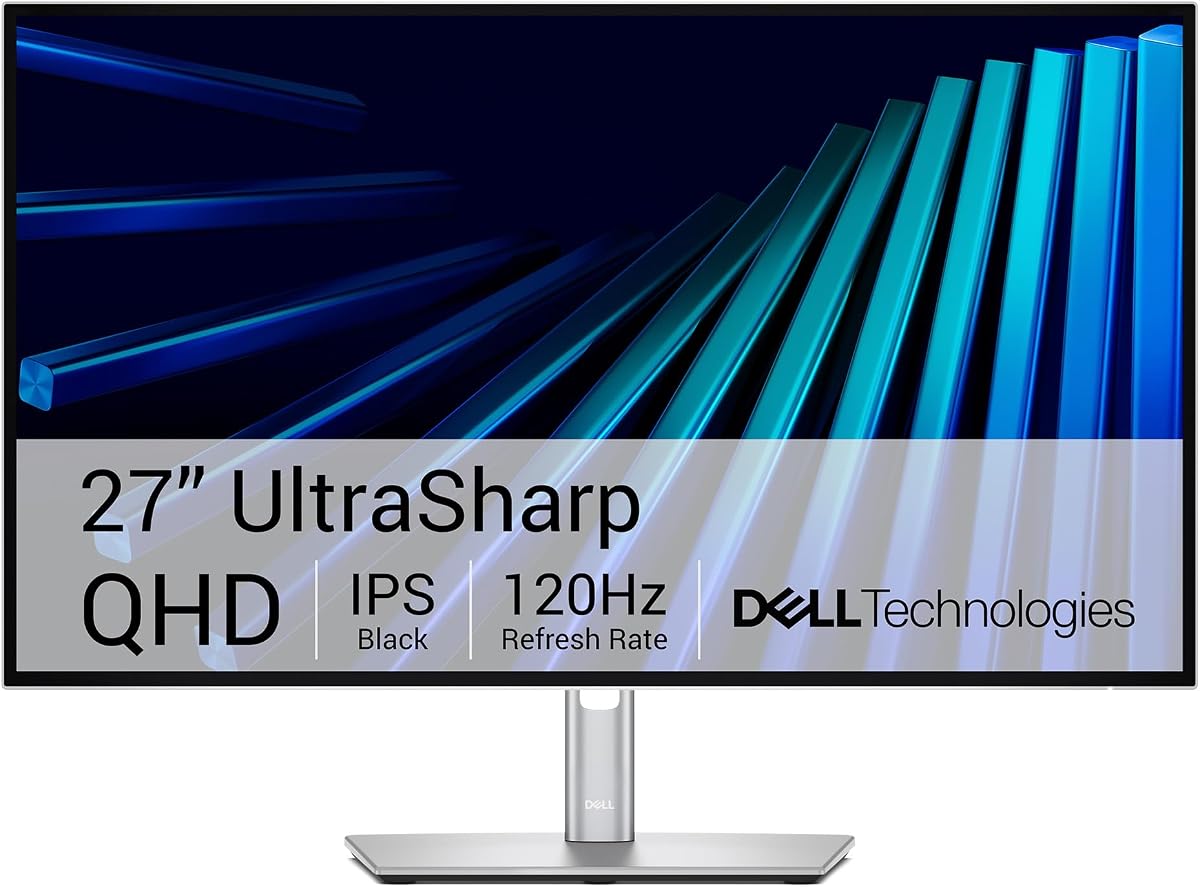
The Dell UltraSharp 27 Thunderbolt Hub Monitor is a premium device designed for professionals who need robust connectivity. It features Thunderbolt 4 technology which supports high speed data transfer and video transmission. The built-in KVM switch allows you to control two machines with one keyboard and mouse increasing workflow efficiency.
We may earn a commission when you buy through this link, at no additional cost to you.
Color accuracy is a priority here with 98% Display P3 coverage and factory calibration. This ensures your photos and videos look true to life straight out of the box. The light ash finish and borderless screen bring a refined look to any office space. It is tested with devices on macOS for seamless compatibility.
While it does not offer 4K resolution the QHD display is sharp and detailed for coding and writing. The ergonomic stand supports height tilt and pivot adjustments. This monitor is ideal for developers and designers who need a reliable hub for their desk setup. The Thunderbolt connectivity simplifies cable management significantly.
If you want a premium hub monitor that integrates tightly with your workflow this Dell model is excellent. It offers top-tier connectivity and color performance that justifies the higher price. We recommend it for professionals who need a central command center for their devices.
The KVM switch allows you to share keyboard and mouse across two computers easily without extra peripherals.
Thunderbolt 4 support ensures maximum bandwidth for video and data transfer to your MacBook Pro.
We may earn a commission when you buy through this link, at no additional cost to you.
The LG 27U631A-B is a versatile monitor offering QHD resolution and a 100Hz refresh rate. It uses IPS technology for vivid visuals even at wider angles. This makes it suitable for general productivity and casual gaming. The HDR10 support enhances picture quality when viewing compatible content on macOS.
We may earn a commission when you buy through this link, at no additional cost to you.
It includes a USB Type-C port with up to 15W power delivery which is enough to maintain a charge for some MacBook Air models during light use. For Pro models you will need a separate charger. The Switch app allows you to customize screen layouts and launch video calls with hotkeys.
The virtually borderless design keeps focus on the screen while looking sleek on the desktop. Reader Mode reduces blue light emission to help with eye fatigue. While the stand lacks height adjustment it provides a slim profile to minimize clutter. It is a functional option for balanced workflows.
If you need a middle ground between resolution and cost this LG monitor fits well. It offers decent performance for both work and media. We suggest it for users who want a larger QHD screen without committing to 4K pricing.
This monitor balances QHD clarity and 100Hz motion for both productivity and light gaming effectively.
The Switch app lets you split screens into sections for easier multitasking and call management.
We may earn a commission when you buy through this link, at no additional cost to you.
Selecting the right monitor involves considering connectivity, resolution, and ergonomic needs. This guide breaks down the key factors to help you make a confident decision.
MacBook Pro models often require USB-C or Thunderbolt ports for seamless connectivity. Monitors with USB-C support can deliver video and power through a single cable which simplifies your desk setup significantly. Always check if the monitor supports the power delivery wattage your laptop needs to charge effectively while in use.
Look for monitors with multiple ports like HDMI and DisplayPort in addition to USB-C. This ensures compatibility with other devices you might own. Thunderbolt connectivity offers the highest bandwidth and is ideal for high-resolution displays and data transfer.
Resolution determines the sharpness of text and images. For 27-inch screens 4K resolution provides excellent clarity for detailed work. However 2K or QHD offers a good balance between performance and cost for general productivity. Consider the physical size of the monitor to ensure it fits comfortably on your desk.
A larger screen can boost productivity by allowing multiple windows to be open simultaneously. Ensure the pixel density matches your viewing distance for a comfortable experience. Higher resolution screens are particularly beneficial for creative professionals.
Color accuracy is crucial for design and video editing tasks. Look for monitors with high DCI-P3 or sRGB coverage to ensure vibrant and true-to-life colors. Factory calibration ensures the display is accurate right out of the box without needing additional tools.
Consistency across devices helps in maintaining a professional workflow. Monitors with wide color gamuts enhance the visual experience for media consumption and creative projects. Always verify color space metrics in the product specifications.
The refresh rate affects how smooth motion appears on screen. While 60Hz is standard for office work higher refresh rates like 100Hz or 120Hz provide smoother scrolling and better responsiveness. This is beneficial for users who spend long hours working or gaming.
Higher refresh rates reduce motion blur and can decrease eye strain over time. It is a feature worth considering if you want a more fluid visual experience. Check compatibility with your system to utilize higher rates effectively.
An ergonomic stand allows you to adjust height tilt and pivot to reduce neck and eye strain. Proper positioning helps maintain good posture during long work sessions. Adjustable stands are essential for tailoring the viewing angle to your specific needs.
VESA mount compatibility gives you the flexibility to use third-party arm mounts if needed. Comfort is key for long-term health and productivity so prioritize monitors with versatile adjustment options. A stable base is also important for a secure setup.
Build quality impacts durability and aesthetics. Monitors with slim bezels offer a modern look and are better for multi-monitor setups. The finish should complement your workspace environment whether you prefer matte or gloss surfaces.
High-quality materials ensure the monitor lasts longer and performs consistently. A sleek design reduces distractions and enhances the overall look of your desk. Consider the stand stability and cable management features for a cleaner setup.
Features like built-in speakers KVM switches and USB hubs add convenience. USB hubs allow you to connect peripherals directly to the monitor. KVM switches let you control multiple computers with one set of input devices improving workflow efficiency.
Eye care features like blue light filters and flicker-free technology protect your vision. These are beneficial for users who spend extended periods in front of screens. Evaluate which extra features are most relevant to your daily tasks.
Determine your budget before shopping to narrow down options effectively. Higher priced monitors often offer better color accuracy and connectivity. However there are many affordable options that provide good performance for general use.
Balance the features you need with what you can afford to get the best value. Consider long-term benefits like durability and adjustability when assessing value. A slightly higher investment can lead to better productivity and comfort.
To set up your monitor start by connecting the USB-C or HDMI cable to your MacBook Pro. Ensure the cable supports video and data if you plan to use power delivery features. Adjust the monitor stand height so the top of the screen is at eye level to prevent strain.
Calibrate your display settings in System Preferences to match the external monitor colors. This ensures consistency between your laptop screen and the external one. You may need to install specific software if provided by the manufacturer for advanced color management.
Regularly clean the screen with a microfiber cloth to avoid scratches. Keep the area around the monitor dust-free to maintain airflow and prevent overheating. Periodically check cable connections to ensure they remain secure and functional over time.
Monitors with wide DCI-P3 coverage and factory calibration work best. Models like the BenQ MA270UP or Dell UltraSharp U2726DER offer Mac-specific tuning that aligns with system color profiles accurately for professionals.
Yes monitors with USB-C power delivery can charge your MacBook. Look for models offering at least 65W power if you use a MacBook Pro to ensure your laptop stays powered during intensive tasks and usage.
For the highest bandwidth and single-cable connectivity Thunderbolt cables are recommended. However standard USB-C cables support video and power for many monitors. Check the product specs to confirm the required cable type.
QHD or 4K resolutions are ideal for coding as they allow more lines of text on screen. This reduces scrolling and improves focus. Ensure your system supports the resolution at a comfortable scaling factor.
Yes many monitors listed offer high refresh rates like 100Hz or 120Hz. Look for FreeSync support to minimize tearing. While not dedicated gaming monitors they provide smooth visuals for casual gaming on macOS.
Most MacBooks support dual external displays depending on the model. Ensure the monitors have daisy chain support or use adapters. Monitors like the BenQ PD2706QN support MST for easy multi-monitor setups.
We have highlighted ten excellent monitors that cater to different needs from budget-friendly options to premium hubs. Each pick offers unique features like color accuracy high refresh rates and robust connectivity. Whether you prioritize design work or general productivity there is a fit here for everyone.
Prioritize the features that matter most to your daily workflow. Color accuracy and USB-C power delivery are vital for creatives while refresh rates matter more for dynamic tasks. Investing in the right monitor can significantly enhance your comfort and efficiency over time.
Always check current prices and availability before purchasing as they fluctuate frequently. We hope this guide helps you find the perfect display to complement your MacBook Pro setup. Enjoy an enhanced visual experience tailored to your specific needs.